

Labs
Editor
A complete guide to the Stepwik rich text editor: slash commands, Markdown support, code blocks, AI Rephrase, and step management.
The Stepwik editor is a Notion-like rich text environment designed specifically for technical content. You can mix prose, code blocks, images, and embeds within each step without switching between tools. Every change is saved automatically, so you can focus on writing without worrying about losing progress.
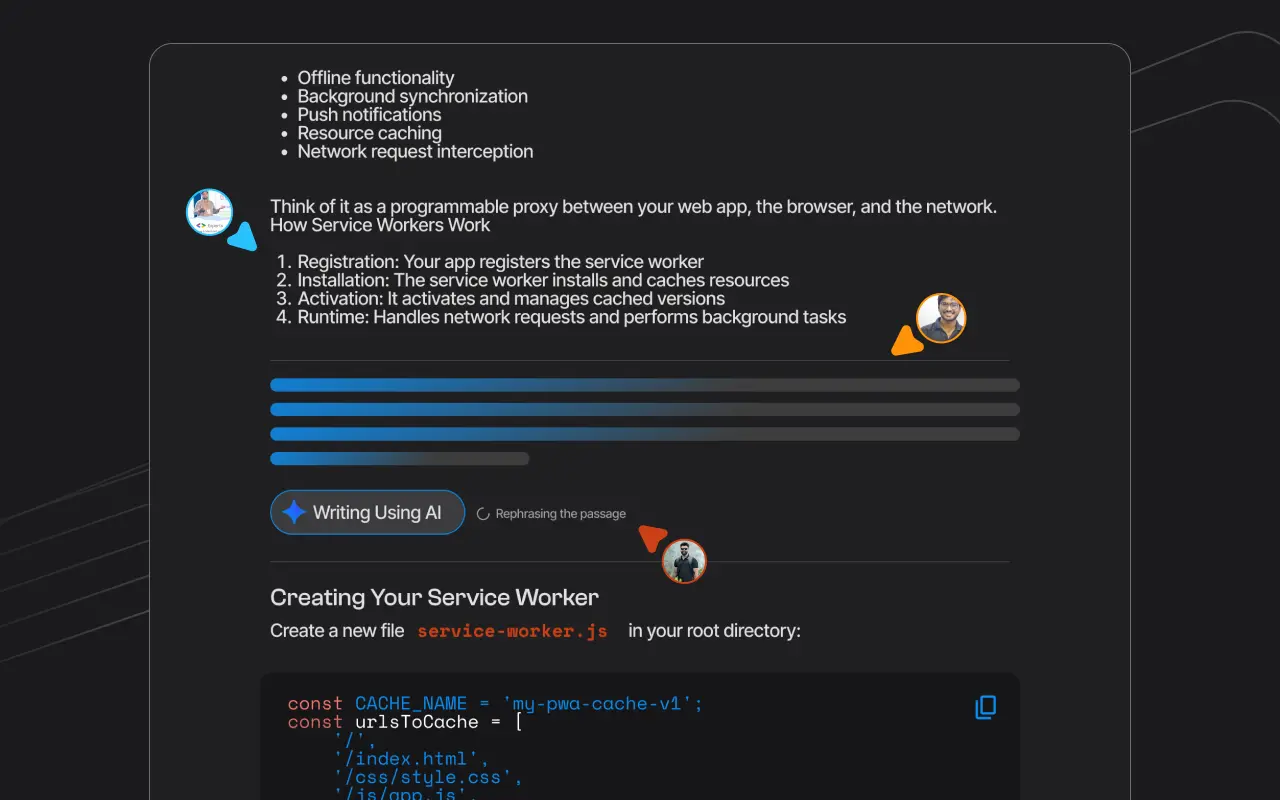
Supported content types
- Paragraphs: standard text with bold, italic, inline code, and link formatting
- Headings: H1, H2, and H3 to organize longer steps
- Code blocks: multi-line code with language selection for syntax highlighting
- Images: upload directly or paste a URL
- Videos: embed YouTube, Loom, or any iframe-compatible video source
- Embeds: CodePen, GitHub Gists, and other embed-friendly resources
Using slash commands
Type / anywhere in the editor to open the command palette. Select a block type to insert it at the cursor position.
| Command | What it inserts |
|---|---|
/code |
Code block with language picker |
/h1, /h2, /h3 |
Heading blocks |
/image |
Image upload or URL input |
/video |
Video embed |
/divider |
Horizontal rule to separate content visually |
Markdown support
You can paste Markdown directly into any step and it renders automatically. Headings, bold, italic, inline code, fenced code blocks, and lists all convert on paste. This makes it easy to move content from a README, blog post, or existing doc into Stepwik without reformatting by hand.
You can paste content like headings, lists, bold/italic, inline code, and fenced code blocks (for example a bash install command followed by npm start). Paste into any step and the editor converts it to formatted blocks instantly.
AI Rephrase
Select any text in the editor and choose AI Rephrase from the context menu (or the toolbar). The AI rewrites the selected content for clarity and readability, useful for simplifying jargon or making instructions easier to follow.
Keyboard shortcuts
| Action | Shortcut |
|---|---|
| Bold | Cmd/Ctrl + B |
| Italic | Cmd/Ctrl + I |
| Inline code | Cmd/Ctrl + E |
| Undo | Cmd/Ctrl + Z |
| Redo | Cmd/Ctrl + Shift + Z |
| Open slash menu | / at start of line |
Managing steps
Steps are listed in the left sidebar of the editor. Each step has its own content area.
Add a step
Click + Add Step at the bottom of the step list or press the add button in the sidebar.
Reorder steps
Drag a step up or down in the sidebar to change its position in the lab sequence.
Rename a step
Click the step title in the sidebar or at the top of the editor area and type a new name.
Delete a step
Hover over a step in the sidebar, click the ··· menu, and select Delete.
Auto-save
The editor saves your work automatically as you type. You do not need to press a save button. A Saved indicator in the toolbar confirms your latest changes have been committed. If you lose your connection temporarily, the editor queues changes locally and syncs them when connectivity is restored.