

AI and Capture
Chrome Extension
Turn any technical blog, GitHub repo, or documentation page into a structured Stepwik lab in one click, directly from your browser.
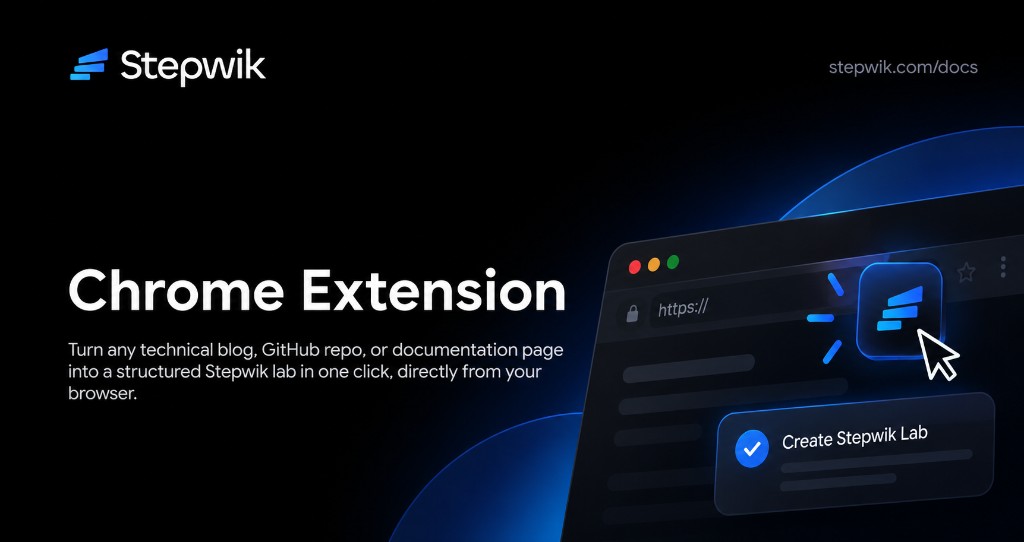
The Stepwik Chrome Extension brings the AI lab generator into your browser. When you're reading a blog post, browsing a GitHub README, or reviewing API documentation and you think "this would make a great lab", you can generate a structured, step-by-step lab without leaving the page, then open it in Stepwik Studio to edit and publish.
What the extension can generate from
The extension works with any publicly accessible web page, but produces the best results with structured technical content:
- Blog posts and tutorials: step-by-step guides, how-to articles
- GitHub READMEs: installation, usage, and configuration sections
- API documentation: endpoint references, quickstart guides
- Official documentation: framework docs, library references, product guides
Installation
Open the extension page
Visit go.techferment.com/stepwik-extension in Chrome.
Add to Chrome
Click Add to Chrome and confirm by clicking Add extension.
Pin the extension
Click the extensions puzzle-piece icon in the Chrome toolbar, find Stepwik, and click the pin icon so the Stepwik button stays visible.
Sign in
Click the Stepwik icon and sign in with your Stepwik account. You must be on a Pro plan or above to use the extension.
How to use the extension
Open the source page
Navigate to the blog post, GitHub README, documentation page, or tutorial you want to convert.
Detect the page
Click the Stepwik icon in your Chrome toolbar. A popup confirms the page has been detected.
Generate Lab
Click Generate Lab. The extension sends the page content to Stepwik's AI and generates a structured lab (typically a few seconds).
Review the preview
Review the preview: title, description, and step list: before opening it in Studio.
Open in Studio
Click Open in Studio to rename steps, fix code examples, add images, and polish.
Publish
Set visibility and publish when ready.
Tips for the best results
- Use pages with clear structure: headings, numbered lists, and code blocks produce better labs than dense paragraphs.
- Prefer official sources: official docs and well-maintained READMEs yield more accurate code examples.
- Regenerate if needed: if the first generation doesn't capture the structure you want, try again or restructure steps in the editor.
- Add context in Studio: add a prerequisite step, a summary step, and audience context the source page may omit.
Troubleshooting
The Stepwik icon doesn
The extension may be installed but not pinned. Click the puzzle-piece icon in the Chrome toolbar, find Stepwik, and pin it. If it isn't in the list at all, revisit go.techferment.com/stepwik-extension and reinstall.
The extension says I need a Pro plan
The Chrome Extension is only available on Pro and Organization plans. Sign in and upgrade from Account Settings → Subscription.
The generated lab is missing steps or poorly structured
The AI extracts structure from the page's HTML. Pages with minimal markup may produce less structured output. Try a different source page, or use AI Content Generation in Studio and paste the URL there.
The extension isn
Refresh the page and try again. If the error persists, sign out of the extension (Stepwik icon → Sign out), sign back in, and retry. If the issue continues, contact support.