

Getting Started
Studio
How the Stepwik Studio workspace is organized and what each area is for.
Studio is the authenticated authoring workspace. You always work inside a workspace:
- Personal: your individual account (
/studio/user/personal/…) - Organization: a shared team workspace
Switch workspaces from the org switcher. Content does not move between workspaces unless you submit or recreate it.
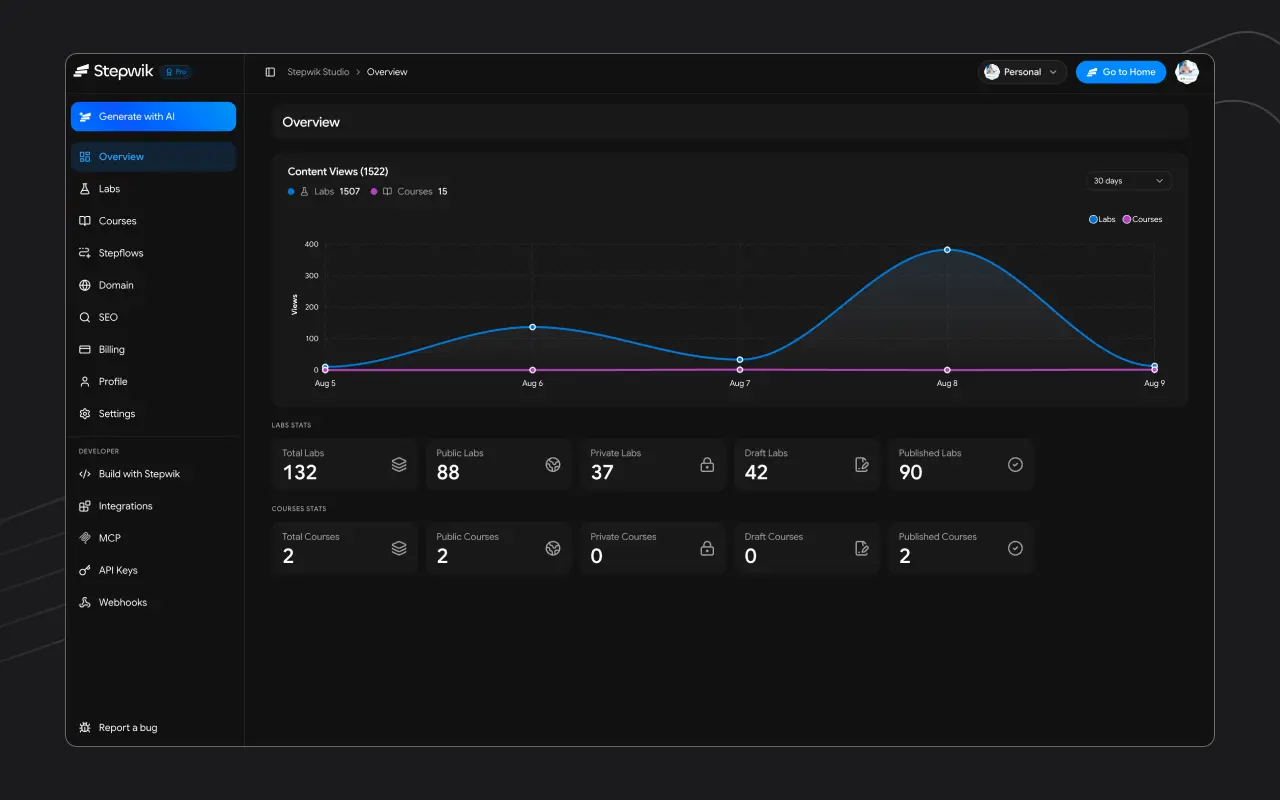
Sidebar map
| Area | Purpose | Docs |
|---|---|---|
| Overview | Combined lab/course views chart plus count cards | This page |
| My Progress | Org only: continue or review labs you started | My Progress |
| Labs | List, create, generate, edit, settings, history, stats, pending review | Labs |
| Courses | Learning paths (when enabled on your plan) | Courses |
| Stepflows | Screenshot walkthroughs (when enabled) | Stepflows |
| Domain / SEO | Personal portal subdomain and SEO | Domain and SEO |
| Billing | Personal plan and invoices | Billing |
| Organization settings | Org manage pages (members, roles, submissions, …) | Organizations, Create and join |
| Profile / Settings | Public profile and notification prefs | Account setup |
| Build with Stepwik | Developer tools | Developers |
Header CTA: Generate with AI → Generate labs.
Overview page
On Overview you typically see:
- Views over time for labs + courses (1 / 2 / 7 / 30 / 90 day ranges)
- Lab stats cards (for example total, published, draft, private, public)
- Course stats cards when courses are enabled
Per-item deep analytics live on each lab or course Stats page.
Creating content
Blank lab
Labs → Create Lab: start from an empty titled lab.
AI draft
Generate with AI from GitHub, PDF, or Google Slides.
Course
Courses → Create: group labs into a learning path.
Stepflow
Stepflows (+ Chrome extension capture).
Draft
Create a blank lab, AI draft, course, or stepflow in the matching Studio area.
Edit and preview
Author in the editor, then preview before you share.
Publish
Set visibility and publish: see Publish and share. Optionally add the lab to a course.
Developer tools
Integrations
Embeds and connected services for labs.
MCP
Connect AI clients to draft private labs.
API Keys
Authenticate Studio API requests.
Webhooks
Event delivery (coming soon).
Connected apps
Link Google and other accounts.
API Playground
Try endpoints from the browser.
Organization settings
See Organizations for the full Manage menu, including members and roles and lab submissions.
Related
Create your first lab
Follow the quickstart to draft, publish, and share a lab.
My Progress
Resume org labs you started or completed.
Labs overview
Structure steps, visibility, and the Studio labs list.
Lab settings
Title, slug, tags, cover, and descriptions.
Generate with AI
Build drafts from GitHub, PDF, or Google Slides.
Developer tools
API keys, MCP, integrations, and the playground.