

AI and Capture
Generate labs
Turn a GitHub repository, PDF deck, or Google Slides presentation into a structured Stepwik lab with AI.
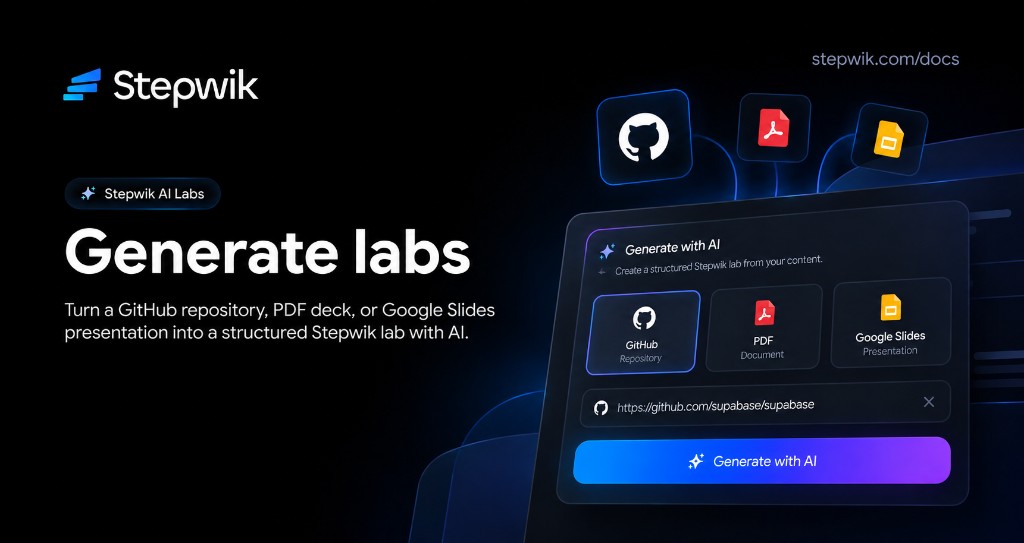
Generate with AI creates a full lab draft from one of three Studio sources: a GitHub repository, a PDF deck, or a Google Slides presentation. The result is a private draft you review in the editor before publishing.
Open Generate with AI
Open Generate with AI
In Studio, click Generate with AI in the header (or go to Labs → Generate).
Choose a source
Pick a source tab: GitHub, PDF Slides, or Google Slides.
Generate and open the draft
Provide the source, start generation, then open the draft when it finishes.
You can also deep-link with query params such as ?source=repo, ?source=pdf, or ?source=slides.
Sources
| Source | What you provide | Notes |
|---|---|---|
 GitHub GitHub |
Repository URL | Connect GitHub under Integrations to use private repos |
| PDF Slides | Upload a PDF file | Best for slide decks and structured presentations |
 Google Slides Google Slides |
Pick a presentation | Connect Google Slides under Integrations |
After generation
Open the draft
Open the draft in the lab editor.
Fix accuracy
Fix step titles, code accuracy, and missing prerequisites.
Preview
Preview on desktop and mobile.
Publish
Publish when ready.
Generated labs are drafts. Publishing and visibility always stay under your control in Studio.
Tips
- Prefer well-structured READMEs, docs folders, and decks with clear section headings.
- For private GitHub repos, connect the account first on Developer → Integrations.
- If the outline looks wrong, try another source or regenerate, then refine in the editor.
- Use the Chrome Extension when you want to capture a live web page instead of a repo or deck.
Related
AI and Capture overview
All generation, rewrite, capture, and stepflow tools at a glance.
GitHub integration
Connect GitHub to generate from private repositories.
Google Slides integration
Connect Google Slides to generate from presentations.
Chrome Extension
Capture a live web page into a lab from Chrome.
AI Rewrite
Polish generated drafts for clarity before publishing.
MCP
Draft private labs from AI clients connected to Stepwik.